
SELF-SERVICE DOCUMENTATION
OrderWorth setup.
Profit, explained.
Reviewed · Applies to Free 1.9.7 and Pro 1.9.7
Install on staging, reconcile a few known orders, then evaluate the workflow. New here? Follow the optional step-by-step quickstart. This reference covers Free 1.9.7 and Pro 1.9.7.
01 · Install and set up
- Back up your staging site. Use WordPress with WooCommerce installed; the plugin requires PHP 7.4+, WordPress 6.7+ and WooCommerce 9.9+. These minimum declarations are not a promise that every version combination has been tested.
- Download OrderWorth Free 1.9.7. In WordPress, go to Plugins → Add New Plugin → Upload Plugin. Upload the ZIP, install, then activate.
- Enable WooCommerce’s native Cost of Goods Sold feature and record costs on your products. Follow the official WooCommerce COGS guide. Old orders without trustworthy recorded costs require review; OrderWorth never substitutes today’s product cost.
- Open WooCommerce → OrderWorth → Cost assumptions. Confirm payment fees, your shipping expense, packaging expense and target margin. Check the confirmation box, including any genuine zero costs.
- Run a report. Compare several known orders with your own records before relying on the estimates.
Free and paid Pro
Free is the base plugin for manual order-profit checks, cost assumptions and reviews. Pro is a separate paid add-on for deeper analysis, repeatable imports, scheduled reports and permission-controlled sharing. Keep both active when using Pro.
Pro purchase, activation and updates
- For a fresh installation, download and activate Free 1.9.7 first, then install the separate Pro add-on and keep both active. Pro 1.9.7 requires Free 1.9.7 or later. The current recommended pair is Free 1.9.7 with Pro 1.9.7.
- Choose a Pro plan, save your private access key, approve the payment in Stripe and return for the Pro ZIP.
- In WordPress, open Plugins → Add New → Upload Plugin. Upload the Pro ZIP and activate it.
- Open WooCommerce → OrderWorth Pro license. Paste the purchase key to register this site for updates.
- Use My purchase on this site to download again, release an old site, renew manually or get written support.
Install Free first and then Pro. Keep one installed copy of each edition. See the update instructions.
Activate only after reading the data-sharing note on the license screen. Licensing sends your site URL and purchase or installation token; it never sends order or report data. Your installed Pro reports keep working after update access expires.
Bring your costs with you · Free
- Open Setup & import. Check native COGS is enabled, currency precision is supported and expense assumptions are confirmed. The recent-order health sample covers at most 25 orders.
- Export costs from your existing system, then map columns to
product_id,costorsku,cost. IDs must refer to this store. Use dot decimals, per-unit amounts in the store currency, simple products or variations, and at most four cost decimals. This is a one-time CSV copy, not a direct migration of another plugin’s rules, history or reports. - Upload or paste a UTF-8 CSV up to 8 MiB, then preview. Free validates and applies manageable batches without a 100-row quota; each record is limited to 16 KiB. Keep the page open while processing and review every preview page before confirming. Existing native costs are protected unless you explicitly allow replacement. Duplicate IDs, missing SKUs, mismatched IDs and invalid values are rejected.
- Review every product, currency and cost. Acknowledge intentional zero costs separately, then confirm the preview. WooCommerce treats a simple-product zero cost as unset; the preview shows that native result. Such orders still require an explicit order-cost review.
- Import in batches of 20. Retry the same preview to resume after an interrupted request. Costs changed since preview are skipped. Review conflict messages.
Imports change product costs for future orders. Existing orders retain their recorded item costs. Undo is available to the importing account for 24 hours after preview, and only restores products whose imported cost is still unchanged. Temporary-cache eviction can shorten that window. Keep a backup before importing.
02 · The calculation
What does OrderWorth call profit? An estimate of order revenue after sales tax and refunds, less recorded product cost and payment, shipping and packaging expenses, plus any separately recorded Pro fulfilment and return expenses. Overhead and advertising are excluded. Missing or inconsistent inputs withhold the estimate.
Estimated order profit = revenue after sales tax and refunds − original product costs + confirmed recovered product costs − payment expense − shipping expense − packaging expense − separately recorded Pro fulfilment and return expenses.
- Revenue
- Original order total minus original sales tax, minus refunds net of their refunded sales tax. Customer-paid shipping and order fees remain part of revenue. Discounts are already in the order total and are never subtracted twice.
- Product costs
- Native COGS recorded on the order’s item lines. Those values already account for quantity. Missing or unconfirmed zero costs require review. A manual order-level total can confirm an actual zero.
- Payment expense
- Configured percentage of original gross charged total, including tax and shipping, plus a fixed fee. The calculation uses the saved percentage precision; the percentage fee rounds half up to a currency minor unit. The original fee is retained after refunds unless you enter a manual final payment expense. No gateway reconciliation or universal fee rate is claimed.
- Shipping and packaging
- Your expenses, not what you charged the customer. Free includes per-method expense rules as well as order defaults. Manual order overrides take precedence. Free users should include verified return shipping in their manual expense total. If you record return expenses separately in Pro Returns review, do not also include them in a shipping or packaging override.
- Margin
- Estimated order profit ÷ net revenue × 100. A zero-revenue order has no defined margin. The target is a review threshold, not an estimate of money that can be recovered.
Amounts are calculated in currency minor units with explicit rounding. Missing data, unsupported scope or inconsistent refunds suppress the profit result and exclude the order from aggregate profit and margin.
What is not included
Advertising, salaries, rent, income tax, overhead and any expenses you have not supplied. This is an order-contribution estimate, not an accounting statement, profit-and-loss report or tax calculation.
03 · Review an order
Open an order from the attention list or its estimate in the WooCommerce order list. The in-page review shows the breakdown, outstanding issues, source of assumptions and method IDs. If the order, its creation date, refund details, saved review or assumptions changed after opening, saving is rejected; reopen it before retrying. A save is not a database-wide transactional snapshot.
- Enter the total original product cost for all units only if the recorded item costs are missing or wrong. This overrides OrderWorth’s estimate; it does not change native WooCommerce costs.
- Enter actual payment, shipping or packaging expenses when available. Blank means use the recorded/default basis; an explicit
0means a genuine zero. - For a refunded order, enter recovered product cost, including
0if no recoverable stock returned. Review payment and return-shipping expenses, then check the refund confirmation box. - Choose Save or Save & review next. In-page saves refresh that order and the report totals without losing your filter. Other orders retain their scan values; use a fresh scan after other changes. Standalone review pages still require a fresh scan.
Refund fingerprints include item identities, quantities, taxes and cost-relevant line data—not only the refund amount. Upgrading from 0.2.0 requires a fresh confirmation of previously reviewed refunded orders. This is deliberate; do not blanket-confirm returns you have not checked.
Historical assumptions
Orders entering processing or completed status capture confirmed expense assumptions after their items are saved. Pro also captures missing assumptions when an order enters refunded status. Later setting changes do not rewrite those snapshots. Older orders without a snapshot use current assumptions and are labeled accordingly; saving a manual review captures a snapshot. The target-margin threshold remains current so you can change what receives attention.
Updating to 1.4.3 preserves earlier snapshots; it does not repair assumptions captured by an older release. Check earlier affected orders and enter actual payment, shipping or packaging expenses in the order review when needed.
Refunds affect the original order’s creation-date period, even when the refund occurs later. Historical reports can therefore change. They are not cash-flow reports grouped by refund date.
04 · Scans and Pro reports
Free lets you choose recent or historical dates for processing, completed or refunded orders. The initial selection is the last 30 days. In both editions, each range can span up to 3,660 inclusive calendar days and must end no later than today. Reports process batches of 50. Larger selections continue beyond 5,000 orders through a bounded manual workflow in both editions, including a busy single day. Keep the page open while collecting; Stop and Resume retain the current session. Results are paginated and reason counts open the affected orders. Totals appear only after completion.
Selections are checked before calculations begin; changed order membership stops a larger collection for a fresh scan. Existing order edits during collection can still affect results. This is not a frozen accounting snapshot. A manual session expires one hour after creation and retains at most 128 MiB; individual batches and metadata have additional memory guards. Hosting or large baskets can require a shorter period. Pro comparisons use the same manual continuation for both periods. Use the current Free 1.9.7 and Pro 1.9.7 for complete larger-report analytics; an older Pro add-on cannot use the new large-report export contract.
Method rules · included in Free
Choose your configured payment methods and shipping zones from the selectors in Cost assumptions, then enter your own expenses. Saved methods remain available even if a gateway or zone has been removed. Instance rules win over method-wide rules. Unmatched methods use Free defaults. If an order has multiple shipping methods while shipping rules are configured, enter one manual total shipping expense.
Pro product / variation allocation
Order-level revenue and payment/shipping/packaging expenses are allocated by item net revenue. Native item costs stay direct; a manual order-level product-cost override is also allocated. Largest-remainder rounding keeps allocations balanced to the order’s minor-unit totals.
New product reports show original, returned and net units, confirmed recovered product costs, allocated retained payment fees and return expenses. Refunded orders need a current line-level returns review. Confirm recovered costs only for stock actually recovered. Unmapped, excessive or ambiguous refund quantities require individual review; unknown quantities remain blank. These are allocations, not provider item-level settlements or stock adjustments. Product and order totals can differ when their eligible orders differ. Older saved reports keep their original columns and values.
Weekly/monthly trends and category estimates · Pro
After a complete report, switch between calendar weeks (starting Monday) and months. Read the chart alongside its data table. Edge buckets can cover only part of a week or month; coverage counts make excluded orders visible. Refunds affect the original order-creation period. These are contribution estimates, not cash-flow statements.
Each product uses its current category; when several apply, the lowest category ID is chosen once to avoid double counting. Variations use their parent product’s category. Uncategorised products appear as Unclassified; deleted or unsupported products require review and exclusion. Category assignments are not historical snapshots. Complete report packs include product, category, weekly and monthly tables alongside the order report.
Background reports · Pro
Open Background reports, choose dates and optionally compare the previous period. The server keeps a fixed order selection and saved progress, so you can close the page and return later. Work runs in batches of up to 50 using WooCommerce’s Action Scheduler when available, otherwise WP-Cron. Final results appear only after collection finishes. Existing order edits during collection can still affect results.
Each background period allows up to 100,000 orders and 3,660 inclusive days, subject to hosting and storage limits. Processing expires after 24 hours. Reports expire after seven days by default; Report storage can set 7, 30, 90 or 365 days for new reports and retain up to 12, 24 or 60 reports per site. Existing expiry dates do not change. Only one collection runs per owner at a time. Limits include 20,000 product groups, 2,000 category groups, 8 MiB of aggregates and 128 MiB of retained order CSV across comparison periods. Complex stores can reach a storage limit before the order ceiling.
Use Retry to continue valid saved progress, Cancel to stop pending work or Delete to remove a saved report. Changed currency or calculation settings require a fresh report. Deactivation pauses manual background work; resume explicitly after reactivation while its checkpoint remains valid. Completed reports support complete CSV packs. Owners control reports; explicitly authorised accounts can view and download a specific completed revision through Shared reports.
Reviewed payment fees · Pro
Recorded-fee assistance supports official WooCommerce Stripe Gateway 10.x–11.x and PayPal Payments 4.1.3–4.1.x. It reads existing gateway records locally. Amounts, settlement currency and refund records must reconcile; unsupported or ambiguous records need individual review or a verified CSV. Preview and confirm before applying. No charge or refund is made.
For official WooPayments 11.1.0, Bulk payment fees offers an optional, explicitly confirmed lookup through the installed merchant client. It requests transaction details for the saved payment-intent ID. Only a fully captured, successful, non-refunded and non-disputed payment with matching order amount/currency and a complete gross/fee/net envelope with zero fee tax qualifies. A separate confirmation applies the fee. This is limited fee assistance, not universal gateway reconciliation. Read the request disclosure before using it.
For merchant-verified payment fees, import a UTF-8 CSV with exactly order_id,transaction_id,fee,currency, up to 5,000 rows / 1 MiB. Match each internal order ID to its exact saved transaction ID and supply the final fee in reporting currency, including retained or returned fees. Preview, select and confirm. Existing payment overrides are protected; preview and guarded undo expire after one hour.
Pro comparisons and CSV
Compare the previous equal-length period, the same dates last year or custom dates. Leap day is clamped to February 28 when needed; custom periods may differ in length. Advanced reports can filter by exact payment method, shipping method, destination country and coupon. Filters apply to both periods. Background order-selection ceilings and all storage/time guards apply to the full scanned period before filtering; narrowing a filter does not bypass them. Multiple coupons or shipping methods use combination groups to avoid double counting. Save up to 20 private filter/comparison definitions separately from the existing 10 date presets. Profit change requires complete data coverage; it does not establish the cause of a business improvement.
The original order CSV remains available. Complete report packs add orders, products, categories, weekly/monthly trends, returns, payment/shipping/country/coupon tables, exclusions and calculation metadata, including both comparison periods where selected. Check currency, precision and coverage before combining files. Reports contain internal order IDs and product names, without customer contact fields. Spreadsheet-formula protections apply to text. Packs are limited to 128 MiB across both periods and lower hosting limits may apply; an incomplete archive is not downloaded.
Profit-change drivers · Pro
After a complete comparison scan, see the signed effect of revenue before refunds, refunds, product costs after recovery, payment, shipping, packaging and separately recorded Pro fulfilment/return expenses. The components reconcile to the exact estimated profit change. A positive component increases the estimate; a negative component reduces it. This explains arithmetic, not causal proof about prices or sales mix. The breakdown is withheld when either period needs review or the components do not reconcile.
My saved reports · Pro
Save up to 10 personal date presets: a fixed period or a rolling 1–365 calendar days ending today, with the comparison checkbox. Load a preset and run a fresh scan. Presets belong to your WordPress user and store date choices only, not report totals. The normal report limits still apply.
Scheduled summaries · Pro
Choose Daily for yesterday or Weekly for the last seven completed calendar days. Each is compared with the preceding period. WordPress collects batches of 50 and retains the latest 10 completed aggregate summaries. Both periods must have complete coverage for a profit-change figure. Otherwise, only the eligible-order subtotal and review count appear.
Scheduling is off by default. Saving starts collection no earlier than one minute later. WP-Cron depends on site visits or host cron; work may run late and needs multiple ticks for larger reports. This is not a real-time loss alert. A period over 5,000 orders, expired job or changed currency/settings stops the report instead of publishing partial totals. The Summary status shows progress, the last checkpoint and delayed or failed work. The schedule owner can resume a valid checkpoint for up to 24 hours, request a fresh summary or cancel pending work. These controls preserve recurring cadence and email consent; choose Off to stop future collections. Check your mail service before retrying an uncertain email outcome.
Optional email goes only to the schedule owner’s WordPress profile address through the store’s mail service. It contains aggregate financial figures and a local report link. Mail acceptance does not prove delivery. Saving takes ownership of the one store schedule; losing store-management permission stops it. Turning Off or deactivating either plugin cancels queued work; re-enable explicitly after reactivation. Clear saved summaries on this screen when no longer needed.
Scheduled complete reports and alerts · Pro
Use Scheduled reports & alerts for independent daily, weekly or monthly collections of the latest closed calendar period in your shop timezone. Choose a saved filter profile and a previous-period or year-over-year comparison. Up to eight schedules per owner and 32 per site are supported. Collections queue while that owner already has a running report. Delayed checks collect only the latest closed period, not every missed period.
Alerts can flag loss orders, low margin, profit decline, incomplete cost coverage or failed reports, with links to affected orders and product contributors for permitted managers. They describe the retained collection, not live monitoring. Scheduling and notice email start off. If enabled, notices go only to the schedule owner through your store’s mail service, without attachments or customer contact fields. One email attempt does not guarantee inbox delivery. Pause the schedule to stop future work; turn email off to stop notices. Existing Scheduled summaries remain available separately.
The optional profit-decline comparability guard checks a minimum included-order count, matching reporting currency/precision and the difference in included shares between periods. Existing full cost-coverage requirements still apply. If evidence is insufficient, the history records a suppressed comparison, not an all-clear. Existing schedules keep their behavior until an owner chooses this guard.
Background supplier imports · Pro
Supplier CSV headers and values must be plain text. Pro 1.9.7 rejects markup, encoded octets and unsupported control characters before retaining an upload. Quoted multiline notes and Unicode text remain supported; mapped product IDs, costs and currencies are validated before application.
Bulk costs accepts up to 10,000 rows / 8 MiB. Map product IDs or SKUs, cost and optional currency; review validation and confirm before applying. Replacement and intentional zero each require a choice. Processing continues through Action Scheduler or WP-Cron after closing the page, with pause, resume, cancel, completion status and guarded undo. A working queue is required. Save up to 20 private supplier mappings; always preview the next file. Preview, progress and undo expire after 24 hours. Free keeps manual batched imports up to 8 MiB without a 100-row quota. Pro adds reusable mappings and background application; its 10,000-row processing guard remains visible.
Pro can suggest familiar supplier column names without applying them automatically. Check that costs are per unit, in the reporting currency, rather than pack prices or row totals. Every file with zero costs or changes of at least 50% requires a separate review acknowledgment; mapping choices never replace confirmation.
Shipping and fulfilment expenses · Pro
Import a merchant-verified CSV with order_id, reference, shipping, fulfilment and currency, up to 5,000 rows / 1 MiB. Use internal order IDs and a non-personal reference, with final expenses already in the reporting currency. Preview, select and confirm. Shipping replaces its estimate; fulfilment adds a separate expense. Existing manual/actual shipping records are protected. Avoid duplicating costs already included elsewhere. Guarded undo expires after one hour. This is a reviewed import, not an automatic carrier connection.
ShipStation shipment CSV preparation · Pro
Inside Shipping and fulfilment expenses, open Prepare a ShipStation shipment CSV. Export Shipments (not line items) with exactly these fields: Order - Number, Market - Store Name, Carrier - Fee, Insurance - Cost, Shipment - Tracking Number, Shipment - Void Flag, Return - Return Label Flag and Shipment - Package Count. Use one store and currency, native WooCommerce order numbers, up to 5,000 shipment rows / 1 MiB. Follow the official shipment-export instructions.
The local helper sums carrier plus insurance charges for supported single-package outbound shipments. Verify final charges and completeness against your own records, and confirm zero separate fulfilment expense for every included order. Orders with fulfilment costs must use the combined manual expense CSV instead. Returns, voids, multiple-package records, currency conflicts and ambiguous order identities exclude the whole affected order. Duplicate tracking references and mixed stores reject the file. Preview, select and confirm before applying; existing manual expenses stay protected. This is not a live API connection or settlement reconciliation. Later carrier adjustments, duties and return labels need separate review.
Cost history and future supplier costs · Pro
Cost history records observed native product-cost changes with who, when, source, reason and before/after values. It starts while Pro is active and cannot reconstruct older edits or direct database changes. Default retention is 730 days / 100,000 records, with gradual cleanup and configurable bounds. It is not an immutable accounting ledger.
Preview and confirm a future per-unit cost using supplier base, freight, duty, packaging and other components. Changed costs, identities, permissions or currency stop the update for fresh review; jobs more than 24 hours late also stop. Cancel pending changes when needed. Existing order-item costs, stock and selling prices are preserved.
Private sharing and longer reporting · Pro
An owner can grant up to 25 existing WordPress accounts access to one completed report revision. Recipients must sign in; grants permit viewing/downloads, not cost, order, import or schedule editing. Revoke access in Shared reports. Grants end when the report expires, its revision changes or the owner loses permission. Sharing sends no email.
Report storage offers an optional private calculation index, bounded at 100,000 rows / 256 MiB with 7-, 30- or 90-day expiry. Fresh checks are required before reuse; changed and foreign-currency orders are recalculated. Unsupported financial extensions bypass reuse. The index does not remove the report ceiling. A completed report can be frozen with a dated integrity digest; its values and expiry remain fixed. Later refunds require a fresh report. This is not an accounting close.
Follow through with Pro
The Workflows hub groups reporting, cost review and automation. Capture findings from a complete report into your private Review queue, then open the report or affected order workflow. Acknowledge or snooze for 1–30 days with a reason; remove old items when finished. Acknowledging a finding does not correct an order or prove that a problem is resolved. The queue holds up to 100 items and the latest 10 changes per item; source access still expires with the report.
Period review starts from a frozen, complete background report. Work through the five review steps and retain a dated note bound to that exact report revision. Keep up to 30 period notes. This is a review aid, not an accounting close, tax statement or certification; subsequent refunds need a new report.
After a complete report, use Scenarios to explore explicit changes to product cost, discount or shipping expense. Calculations hold demand and order mix constant and preserve unmodelled expense components. They do not forecast sales, recommend a price automatically or change products, costs or orders. Missing or inconsistent components withhold the scenario.
Free includes optional local workflow counts and contextual suggestions on the relevant OrderWorth screens. At most one suggestion appears per browser-tab session for that site and WordPress account. Continuing the Free workflow hides the card for the rest of that session; “Hide this suggestion” saves a persistent dismissal. Recording starts off, stays in your WordPress profile and sends no telemetry. Local progress lets you inspect, export or clear the counts. Counts are not unique users, purchases or a measured conversion rate.
Inside OrderWorth Free and Pro
See the current WordPress screens in Free 1.9.7 and Pro 1.9.7. These captures use a sample store with fictional data; they illustrate the workflow, not expected business results. Open any image for the full-size view.
Free · Run a report and review its orders
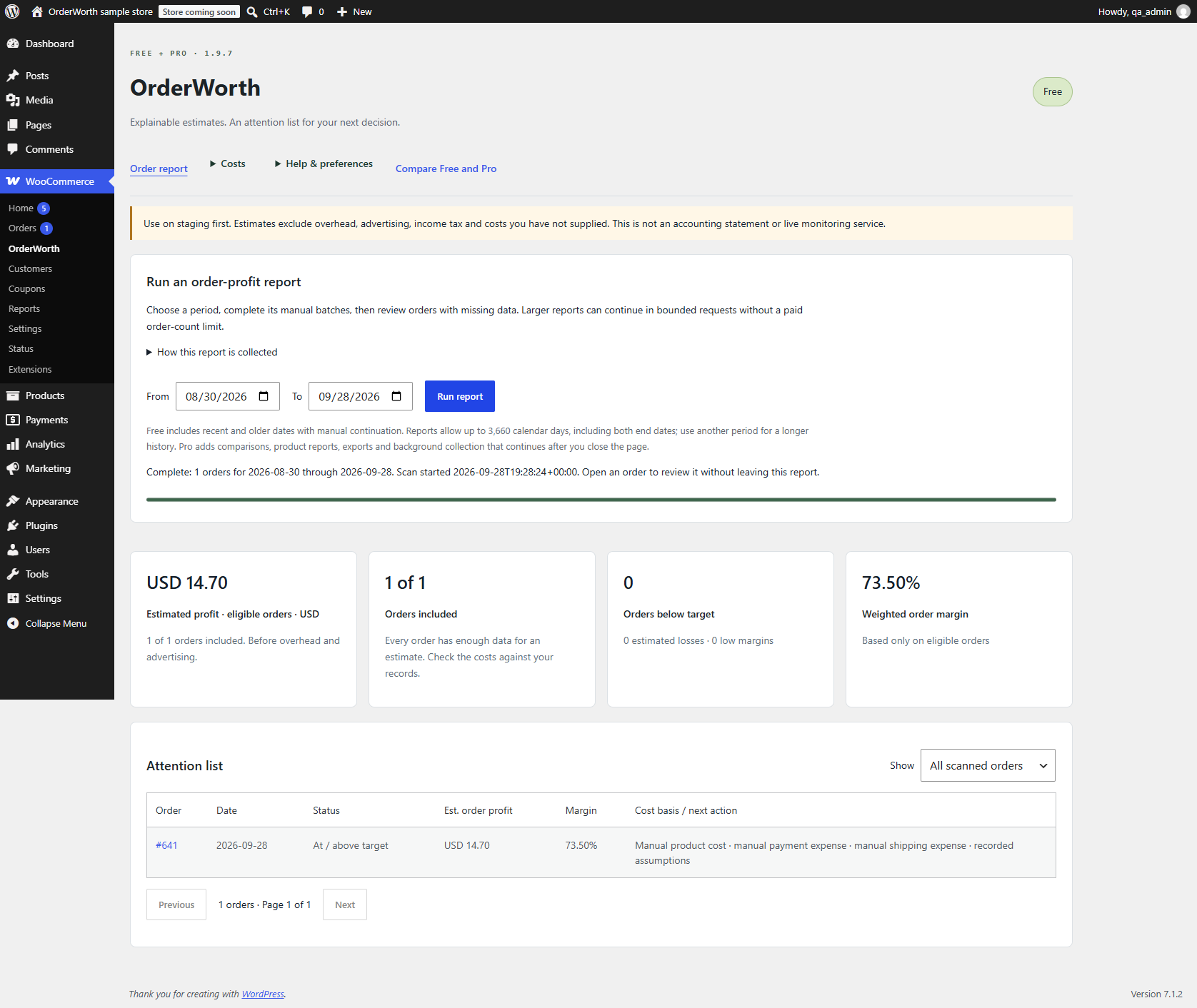
Choose recent or historical dates, complete the report, then open an order to check its recorded costs.
Both editions include historical dates and larger reports. In Free, continue each manual batch until the report completes. Use the attention-list filter to see missing data, estimated losses, low margins or all scanned orders.
Pro · Compare periods and export the report
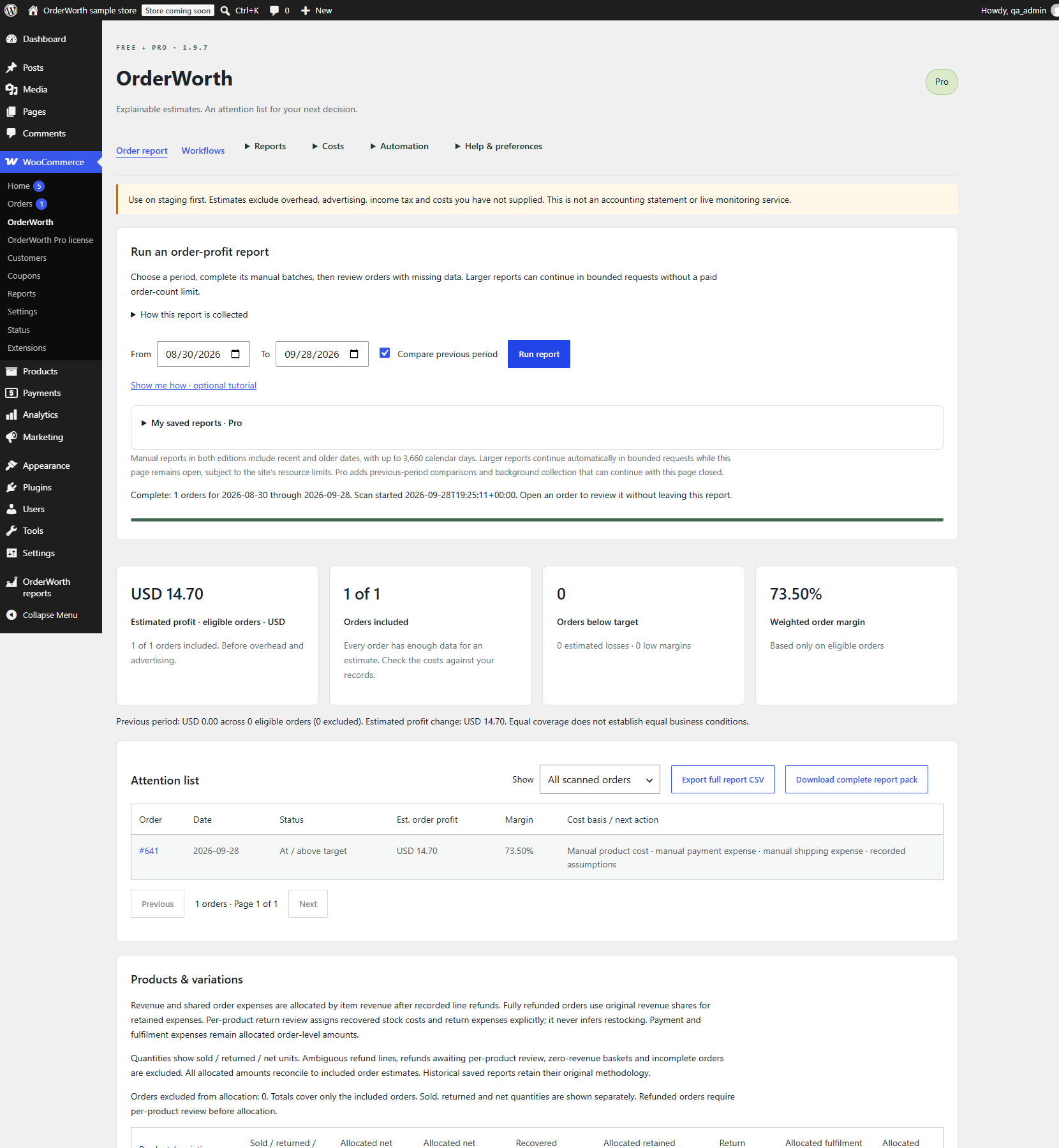
Compare with the previous period and download the completed report as CSV or a report pack.
Pro · Choose your next task
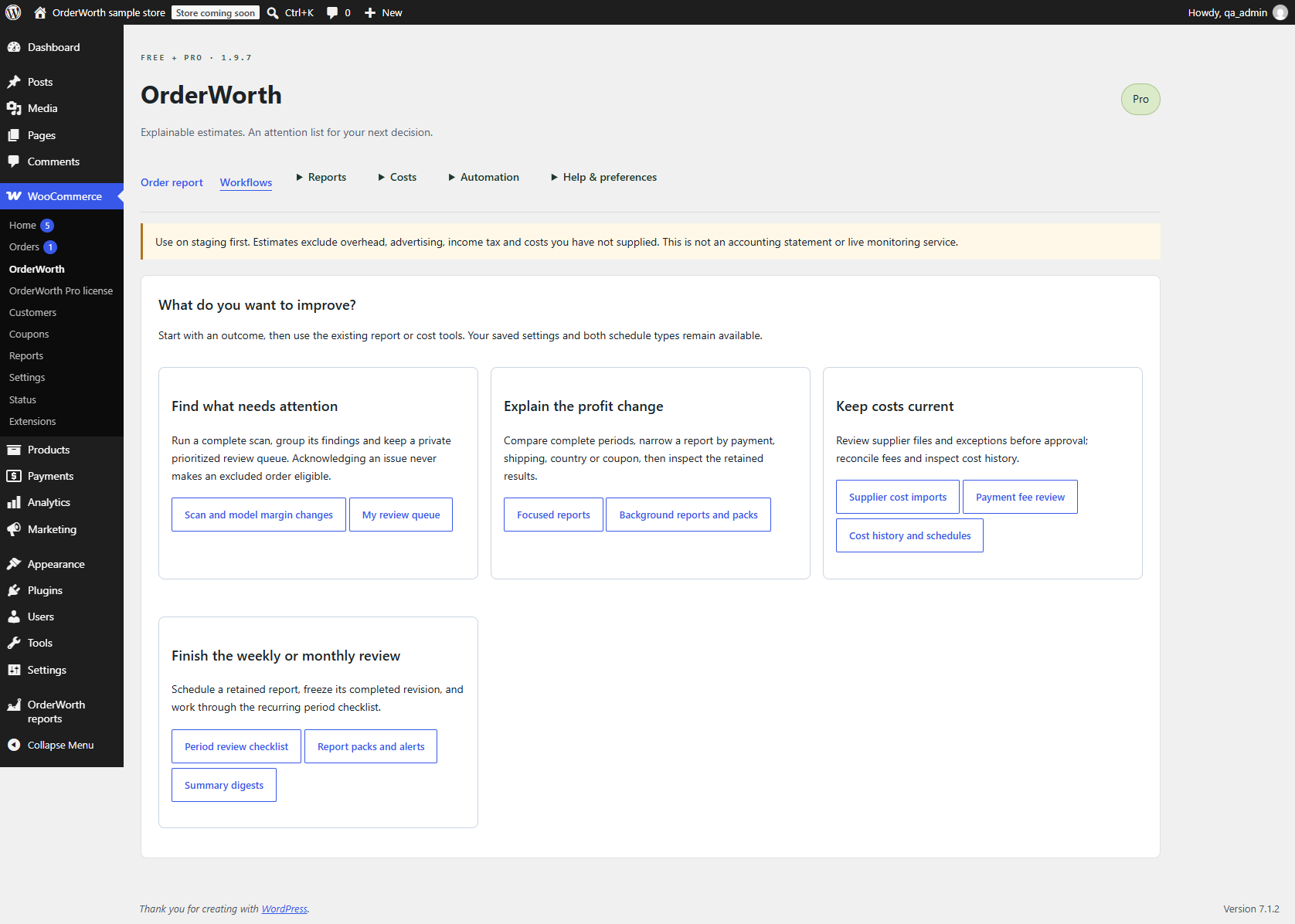
Move from a report to your review queue, supplier imports, payment-fee review or a weekly or monthly checklist.
Follow the quickstart or compare the complete Free and Pro feature list.
05 · Supported scope
Free supports one WooCommerce store currency. Pro 1.9.7 normalizes eligible foreign orders into the stored WooCommerce base currency using locked historical FX rates. It does not provide an arbitrary reporting-currency selector. Both support simple products and variations, native recorded COGS, and explicitly supplied expenses. Store managers with manage_woocommerce can run and manage reports. An owner may explicitly grant a signed-in account read-only access to a completed report revision. Saving a review also requires permission to edit that specific order. Manual reports in both editions continue beyond 5,000 orders within the time and storage guards above; Pro Background reports support up to 100,000 with the page closed. Both editions include historical dates with a maximum of 3,660 inclusive days per range.
Subscriptions, bundles, composites and marketplace/vendor revenue splits are outside scope. Common incompatible cases are flagged, but not every extension can be detected. Free excludes foreign orders. Pro excludes missing historical FX and unconfirmed cost currency; eligible orders share one reporting currency and precision. Native COGS and fixed costs stay in base currency. FX is fetched only in bounded background jobs from Frankfurter v2, which receives currency pairs and historical dates. Exchange Rates provides backfill, retries and manual recovery. No automatic refresh overwrites valid rates.
There is no storefront script or external analytics API. Pro can optionally collect daily or weekly summaries in bounded WP-Cron batches, with opt-in email through your host. Scheduling is off until you enable it. Free makes no license calls. Pro activation and update checks contact the license service without sending store orders or reports.
Both interfaces and quickstart lessons are translation-ready. Available languages depend on the translation files installed on your WordPress site.
06 · Troubleshooting without a call
- “Needs review” instead of a profit number
- Open the order. Confirm missing product costs, review its refunds, confirm settings, or correct unsupported currency/scope. Do not make unknown costs zero just to clear the flag.
- Settings changed but old orders look the same
- Existing expense snapshots are intentionally retained. Enter a manual per-order correction. Older unsnapshotted orders use current assumptions and are labeled.
- Scan expired, canceled or stopped
- No completed totals are available. Sign in again if needed and start a fresh scan. Both editions can choose a shorter date range. Check server/PHP logs and available resources. Do not treat partial rows as final totals.
- My shipping deduction is wrong
- Check your expense, not the customer’s shipping charge. Review any snapshot, method rule or manual override. Multiple shipping methods may need an explicit total expense.
- Pro controls do not appear
- Activate WooCommerce, Free 1.9.7 and Pro 1.9.7 together. Refresh the admin page. A purchase key enables update access in the Pro license screen; reporting features remain local.
Pro customers can open written requests and read replies in My purchase. Include the affected report, software versions and steps to reproduce the problem. Purchase availability and the seller’s contact details are shown at checkout.
07 · Data, deactivation and removal
Installing the current editions: back up your staging site, install and activate Free 1.9.7, then install and activate Pro 1.9.7 if purchased. Keep Free active alongside Pro and run fresh reports to check your setup.
Replacing an earlier development build
Version 1.9.7 establishes the current OrderWorth plugin folders and saved-data names. Earlier development builds are not migrated automatically. Back up the site and export any reports you need before replacing those builds; do not assume their settings or review records will carry over. Have your site maintainer review any data that must be retained.
Calculations and private report records stay on your WordPress server. Authorised owners or explicitly shared accounts can download their reports. License checks do not send order reports to OrderWorth. Optional WooPayments lookups send a saved payment-intent ID to the installed gateway’s payment service after confirmation. Optional email notices pass through your own mail provider. See local retention and external-request details.
OrderWorth stores settings in owwc_settings, method rules in owwc_pro_rules, and order metadata in _owwc_assumptions , _owwc_overrides, _owwc_fx and _owwc_fx_fee. Pro FX cache transients start with owwc_fx_req_ or owwc_fx_day_; owwc_fx_backfill stores bounded backfill progress. Reviews record the WordPress user ID and time. Temporary scan IDs are owner-bound and expire after one hour. Import previews and undo records expire after 24 hours; product import stamps use _owwc_cost_import. Optional guide progress uses owwc_guide_v1. owwc_guide_report records the last completed report date, ranges and counts, and owwc_guide_review records the latest review ID and change signature. These are local, per-user records, preserved on uninstall. Reading progress does not certify store data. User metadata owwc_last_import and owwc_report_presets retain the latest import reference and personal presets. The owwc_digest_config, owwc_digest_job, owwc_digest_history and owwc_digest_error options hold scheduling state and up to 10 aggregate summaries. Deactivation clears queued jobs and disables emails, while saved summaries and presets remain.
Deactivation and uninstall preserve this data so a reinstall does not erase reviews. If you want complete data removal, back up/export first and have your site maintainer use the installed edition’s readme for the complete record list and deliberately remove only OrderWorth records. Pro also retains private imports, supplier mappings, schedule/report records, sharing grants, observed cost history and optional calculation-index rows under the limits in the privacy notice. We do not delete WooCommerce orders or native costs.
08 · Release scope and limits
OrderWorth has separate Free and Pro editions. One Pro payment covers 365 days of updates, downloads and included written support, with manual renewal. The release notes explain product changes and supported scope. Try updates on staging and reconcile known orders with your own records before using the reports.
Use your private access key to open My purchase, download Pro, manage registered sites and read written replies. Customer purchase access does not use an account password. Keep your key safe: the website does not send purchase receipts or support notifications by email. The plugin’s optional summary emails use your WordPress mail service.
Checkout shows whether new purchases are currently available. If purchasing is closed, you can still download Free and explore the demo. For an existing purchase or a lost key, see the help center.